What’s new
Every version of DoreScore, newest first. If you installed it from the Chrome Web Store, it updates on its own once the store approves each version.
1.17.0Nov 15
Skipper is now your study chatbot (Pro): ask him anything about your semester, like what to do tonight or what you need on a final, or have him explain a lecture and quiz you on it, from your own class files. He can add to-dos and study time for you, and he only sends anything once you turn him on. The Daily Dive, a new little puzzle every day, is in the sidebar for everyone. Customize → Top bar hides the parts of Brightspace’s bar you don’t use and puts the rest in your order. Practice questions have their own page (Practice, in the sidebar): pick a lecture from a class or upload your own file, then answer one question at a time. Pro themes: a curated collection, each with a friend and decorations of its own, and a new theme every Monday. What Skipper sends.
1.16.1Nov 15
Pre-order DoreScore Pro at the early price: until January 8, a semester pass is $3.99 and a year pass $6.99, and a pass bought now starts January 8. A new Pro page (Pro in the sidebar, or the Pro tab in the DoreScore window) shows Free and Pro side by side, and after finals DoreScore asks once whether to keep Pro for spring. Your grades, plans, due dates, to-dos and GPA stay free. See the Pro page.
1.16.0Nov 14
Ask Skipper about your syllabus (“What’s the late policy in CHEM 1601?”) and he answers from it, with the lines it came from. Practice questions from a class’s lecture PDFs, each with the line it comes from. Pro also adds work sessions, grade alerts, a Sunday look at your week, study stats and breathing breaks, and your semesters and GPA over time. DoreScore Pro is coming on January 8. Your real grades, grading plans, due dates, to-do list, GPA and the built-in themes stay free. Pro adds grade notices with Brightspace closed, reminders, your own calendars, Gradescope, saving your own themes, and asking your syllabus and AI syllabus reading past two a semester, for $3.99 a semester or $6.99 a year, paid once and never renewed by itself. Everything stays free for everyone until January 8, and new students get Pro free for their first semester. Also: the sidebar’s links are easier to read on every color. About Pro
1.15.0Nov 13
Fixes and polish ahead of finals and the new semester. Reminders now cover exams and your own to-dos, and a new grade can reach you even when Brightspace isn’t open. Study, Christmas and Thanksgiving get the pieces they were missing, Arcade and Card Table get their own progress meters, and DoreScore does much less work on Brightspace pages, so typing in quizzes and discussions stays quick. The download is about a third of its old size. Saving a class library plan no longer changes your grade, your GPA keeps this term and last term apart, Gradescope keeps last semester’s scores, and hiding calendar events, dates when you travel and the study timer all behave. “Use AI for this syllabus” now reads just that one, and Delete all data also removes saved syllabi and disconnects Google. Plus clearer wording throughout and better support for screen readers.
1.14.4Nov 13
Make your own theme: Customize is now a studio where you pick colors, a pattern and decorations and watch your page change as you go, then save it in Yours and share it with a link. Six Games themes join the others: Pixel, Arcade, Terminal, Farm, Quest and Card Table, and a star on any theme keeps it in Yours. On the Calendar page you can add your Google, Apple or Outlook calendar right there, and hide anything with its trash button or the Delete key. Skipper stays one size in every theme and no longer pops up with tips, Customize opens on Themes, a class’s own home keeps Brightspace’s layout at Full, and the tour moves smoothly through Customize.
1.14.3Nov 12
Four seasonal themes, Spring, Summer, Autumn and Winter, each with decorations of its own on the DoreScore home; Winter moves from Holidays to Seasons, and Customize lists Seasons, then Holidays, then the other themes. DoreScore’s calendar now holds what Brightspace’s does: office hours, review sessions and other events your instructors post show on the calendar and in Today in each class’s color, repeating events show every time, and all-day deadlines become to-dos for their day. On a class page, Recent grades now sit beside the grading plan, with Add a grade under them and Tasks below.
1.14.2Nov 12
AI syllabus reading moves from OpenAI to Anthropic’s Claude, which got more grading plans right when we tested both on 110 class syllabi. It still gets only the syllabus and its grading pages, never your grades, and Settings can switch you to reading on your computer anytime.
1.14.1Nov 12
A class split across two Brightspace sites, like General Chemistry and its discussion, now shows each as its own class, with its own page and its own way into Brightspace for announcements and Content, while their grades still count together. Discussion work is labeled that way in your to-do list and calendar. Reading a syllabus on your computer no longer mistakes schedule dates for grading parts, the Help page is linked from Settings, and the download is a little smaller.
1.14.0Nov 11
Change a grade you added yourself: click its score on the class page to fix the score, what it’s out of, or its name, without removing it and adding it again. Adding several grades is quicker too: after you add one, the box stays open with the next one ready (Quiz 1, then Quiz 2) in the same category and out of the same points, so you just type the score. And a box you’re typing in no longer resets when the page updates.
1.13.9Nov 11
New to DoreScore? It now starts with a 20-second tour instead of a question. It shows where your grades and due dates are, then has you open Customize and the level button yourself, so you know where both are and can pick a theme and how much DoreScore changes Brightspace. If you already use DoreScore, nothing changes. The tour on Brightspace’s own home (Widget) works the same way, and the toolbar popup no longer marks new grades twice.
1.13.8Nov 11
If you ever remove DoreScore, Chrome now opens a short page asking why. Answering is optional and anonymous: just the reason you pick, an optional note, and your DoreScore version. The answers decide what gets fixed next.
1.13.7Nov 10
Change a score right on a class page: click any posted score and type your own. It changes in DoreScore only; the row says “Edited by you”, shows the posted score, and Reset puts it back. Dark looks now read right across Brightspace from the moment a page appears: ticked checkboxes and selected radio buttons show their marks, the menu item under your pointer stays readable, and tooltips, Calendar’s selected tab and selected rows no longer wash out. Dialogs, file drop zones, discussion posts and course cards start in your look’s colors instead of flashing white first, and the box under an instructor’s text no longer jumps into place.
1.13.6Nov 10
Grades come out right in more classes. Gradescope’s “Exam I” now pairs with Brightspace’s “Exam 1”, and Brightspace’s summary columns, like Test Avg and Course Grade, no longer count a second time. What you need on an exam now follows a class’s “90% earns full credit” rule even before anything in that category is graded. Extra credit counts only what you’ve earned so far: one of three bonus quizzes adds a third of the bonus, not all of it. An assignment named exactly like a category now lands in it. When AI reads your syllabus, more plans come through whole: a letter scale in an unusual layout no longer stops the rest of the plan, and rules like “best 11 of 12” pass the checks. In a test on 103 Vanderbilt syllabi, it got the whole grading plan right for about three in four.
1.13.5Nov 10
The greeting is back in Brightspace’s bar: “Good morning” stays beside the clock, and Search becomes an icon when the bar is tight. Customize now opens right inside Settings at full width, in three tabs (Theme, Colors and Layout) with an Undo, and switching between Light and Dark remembers the look you left. Settings has its sections on one line and a new “Dashboard and lists” section. When a sync fails, the bar says so and offers Try again instead of looking up to date. Dates read the same everywhere (“Today 5 PM”, “Tue, Nov 17”), every class card and class page has Add task, and grading plans have Part, Share and Average headings. When your syllabus counts an exam that isn’t posted yet, each exam’s share of your grade allows for it. On the calendar, dragging a task no longer scrolls the page, the tray wraps, and exams come first in each day. Skipper’s bubble is one slim line that no longer covers your to-do list, the sidebar fits short windows, Recent feedback moved off the Dashboard (it’s still on each class page), and new installs start on the Harbor theme.
1.13.4Nov 9
Meet Skipper, the sailor in the corner of every Brightspace page. Ask about your classes in your own words, like “what’s due tmr” or “what do I need on the final”, and he answers from your grades, due dates and calendar; dress him up with a hat in Customize. What you need on an exam now counts every exam left, such as a second midterm, including exams only on your Google Calendar. The toolbar button opens Up next: your grades, what’s due next and your next exams at a glance. A shorter tour, Brightspace’s rubrics and button bars in your colors without a white flash, calendar times that no longer get cut off, and main buttons in your theme’s accent color.
1.13.3Nov 8
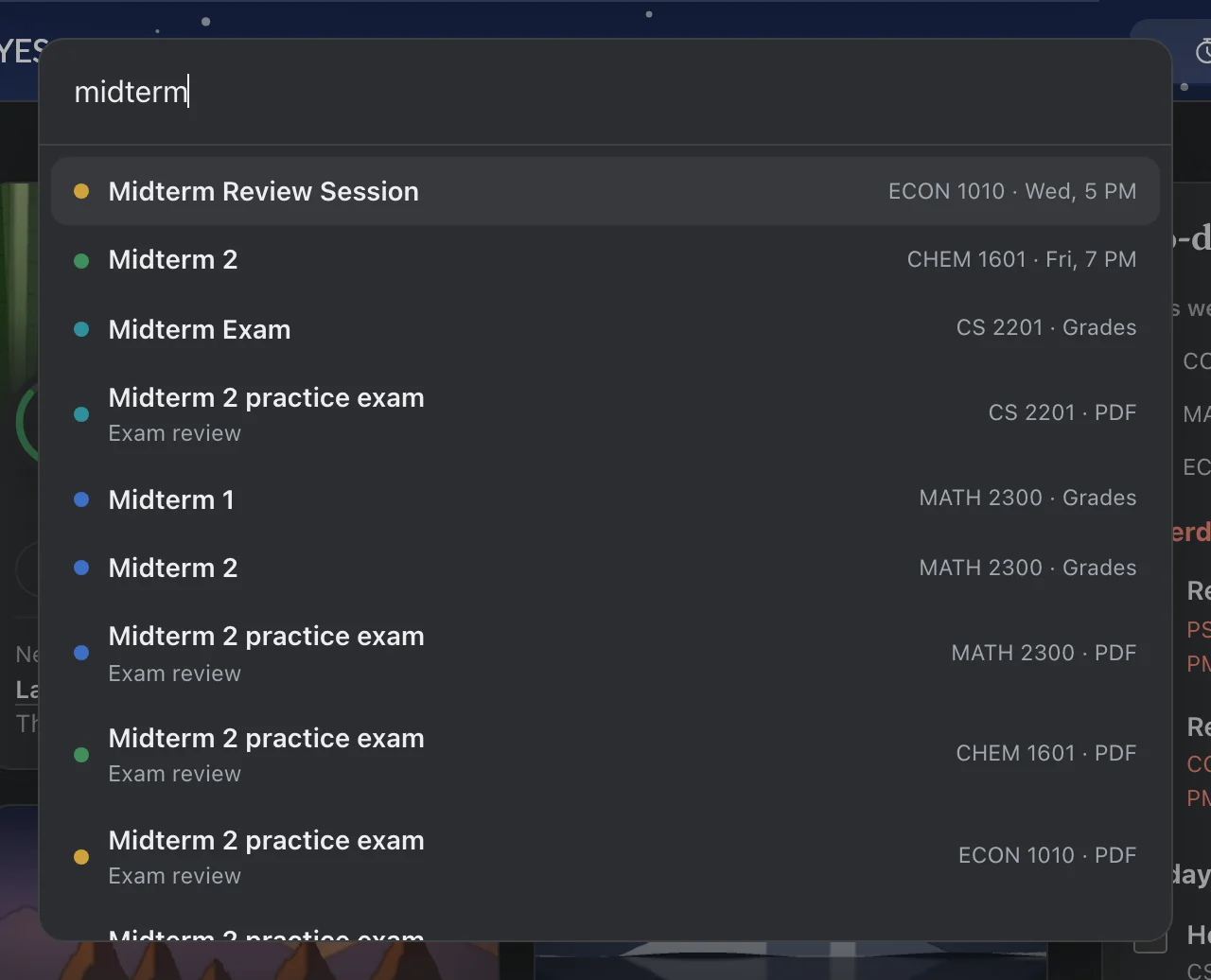
Search all your classes: press ⌘K (Ctrl+K on Windows) on any Brightspace page, or the search button in the corner, to find a class, an assignment, a graded item, or any module or file in your classes’ Content, and open it in one click. The study timer now sits beside the DoreScore button on every Brightspace page, so a session keeps showing from page to page, and the toolbar icon shows the minutes left on any tab; choose Every page, While running or Off in the timer or in Settings. Turn on reminders in Settings, under Notifications, for a notice the evening before and 3 hours before an assignment, quiz or discussion is due, only when it isn’t turned in yet. When an instructor moves a date, your to-do list says “Moved from”, and with reminders on you get a notice. Try letters, under your term GPA, shows your GPA with any letters you pick, without saving anything.
1.13.2Nov 8
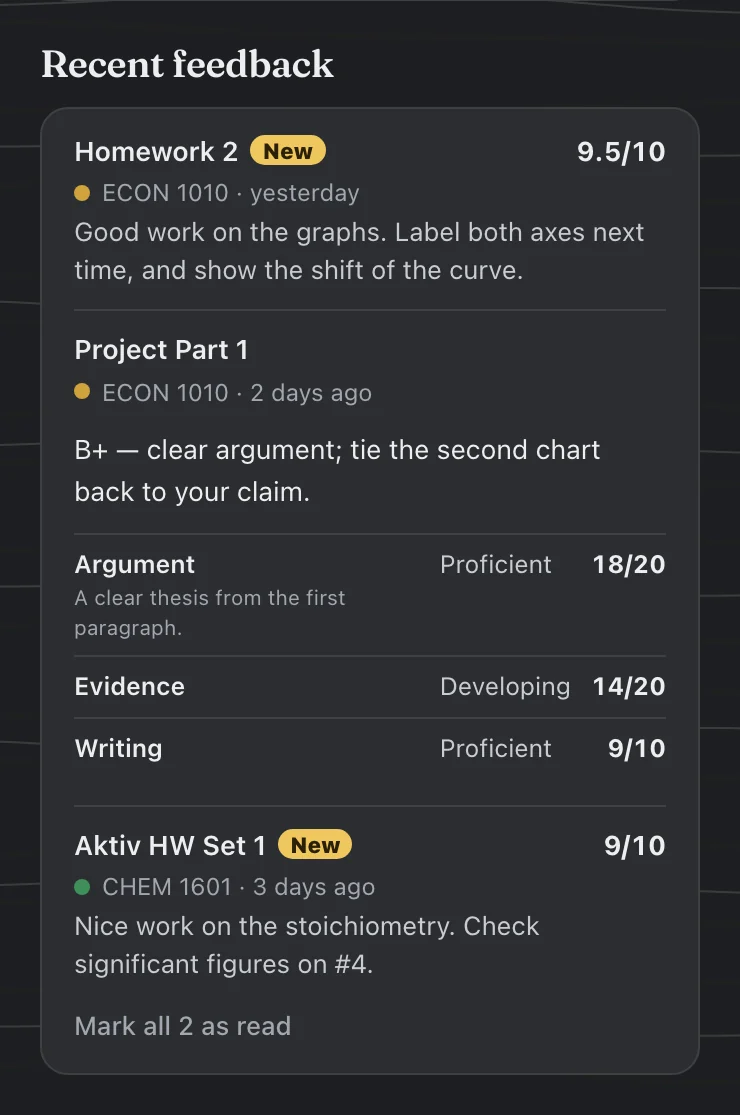
A Recent feedback list shows your instructors’ latest comments, on the dashboard and on each class page, marked New until you open them, with the rubric when they used one. Assignments turned in after the due date say Late, and past-due work with nothing turned in says Missing (never work done on paper or in class); a class’s card says how many are missing. Give a class a nickname in Settings, under Classes, and drag cards on the dashboard (or use the arrows in Settings) to put your classes in your own order. Hide grades, in the sidebar or the toolbar menu, blurs every grade until you point at it.
1.13.1Nov 8
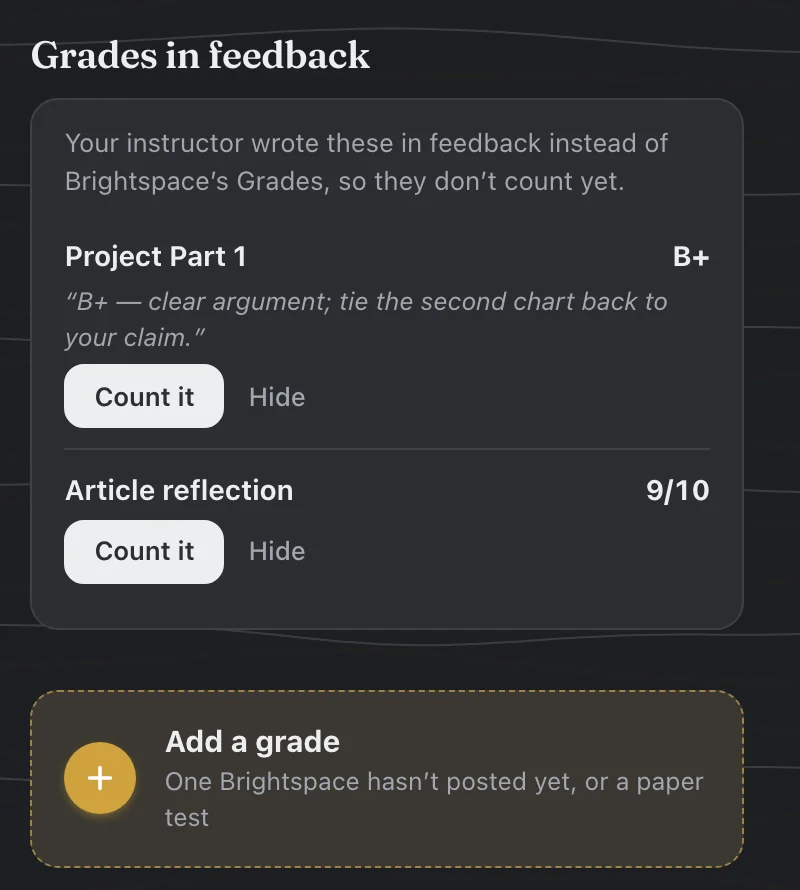
When an instructor writes your grade in feedback instead of posting it to Grades (“B+”, “Grade: A-”), or leaves a score in Assignments that never reaches Grades, the class page shows it under Grades in feedback: Count it to add it, or Hide. Add a grade takes a letter too: type B+ and it counts as the middle of B+ on the class’s scale. On the Study and holiday themes, the DoreScore sidebar runs the full height from the first load, and the Christmas lights in the toolbar menu hang as one string instead of across your classes. Google has verified DoreScore’s calendar sign-in, so the note about its warning screen is gone.
1.13.0Nov 7
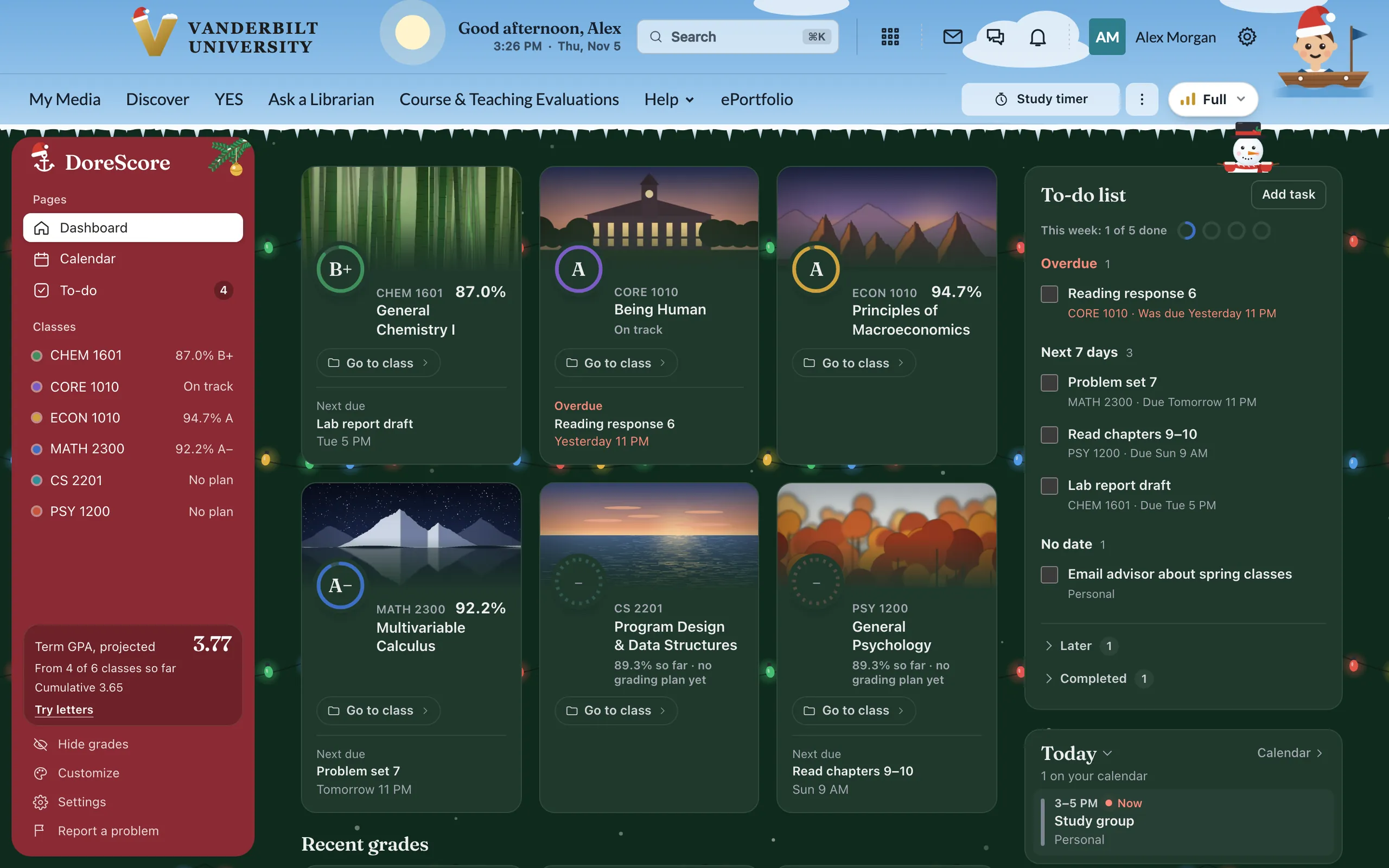
One click on a class card opens the class in Brightspace, and a Continue button picks up the last thing you opened there. Brightspace’s home button now opens the DoreScore Dashboard. Two new themes in Customize: Study, dark and cozy, with rain on the window and now and then a flash of lightning, and Winter, under Holidays. Each holiday puts something on the Vanderbilt V (a Santa hat, a beanie, a cornucopia), and the decorations slide in smoothly instead of jumping. On Brightspace’s own pages, the class menu bar keeps your theme’s color, and busy backgrounds get a frosted box behind what you’re reading. On the Calendar, click an empty time to add a task right there, or a Google event if Google Calendar is connected, and exams show their class code. The to-do list looks ten weeks ahead and spots exams better. Plus fixes for buttons and links that were hard to read on some themes, and many smaller ones from testing.
1.12.7Nov 6
Three holiday themes, under Holidays in Customize: Halloween, Thanksgiving and Christmas. Each brings its own sky behind Brightspace’s bar and a few things to find and click, like the snowman on your to-do list. You can use your own photo as the background, keep a blue, pink or night sky behind the bar all day, and Customize now opens from the level button in every mode. The calendar has a Day view and fits a phone-width window, the DoreScore home stays centered on wide monitors, the widget shows your cumulative GPA, and Today no longer says “Nice work” while something is overdue. A new install no longer starts with a list of old overdue work. Plus fixes for hidden classes showing on the calendar, Brightspace’s name and icons at night, the widget before any grading plans are set up, and many smaller ones from testing.
1.12.6Nov 5
The button at the top right of Brightspace’s bar now just switches between Minimal, Widget and Full, with a small picture of each. Your theme, colors and layout moved to Customize in the DoreScore sidebar, with the sidebar color on the Theme tab, and every Customize tab is the same size. In a narrow window, DoreScore’s buttons keep a row of their own under Brightspace’s header, in the same spot in every mode. Your projected GPA says how many classes it’s from, every class gets its own color, class codes are never cut off, class cards show overdue work as Overdue, and the To-do count matches the list. Plus fixes for the calendar’s Plan work strip, review sessions and exams from Brightspace’s calendar (nothing to check off), text that was hard to read on dark themes, and the sky’s sun sitting behind your name.
1.12.5Nov 5
One button at the top right of Brightspace’s bar picks how much DoreScore you get: Minimal, Widget or Full, with your theme, colors and layout in short tabs beside it. On Full, Brightspace’s own top bar stays above the DoreScore home, with the time, Search, the study timer and your sky or scene across it. The calendar works like Google Calendar: it opens at the current time, and the toolbar, day names and all-day row stay at the top as you scroll. Adding a task takes one line, the study timer runs for any length you type, recent grades show as rings under your classes, and you can set up or fix a class’s grading plan right on its page. What if is gone from the dashboard (each class page still has sliders for what’s left), and a stutter every quarter hour on the DoreScore home is fixed.
1.12.4Nov 4
Connect Google Calendar asks Google for less: only your list of calendars and the events on them, read-only. It’s now in Settings → Your calendars when you open DoreScore from the toolbar too, showing your calendars and what’s coming up.
1.12.3Nov 4
Installing DoreScore now opens Brightspace, where a short welcome brings in your classes and asks you to pick an integration level; new installs start in the Midnight theme. Your term GPA sits in a small box with Recent grades, so your classes start right under the header, and What if is a gold button there: try any class’s grade as a percent or a letter and watch your GPA change in a bar along the bottom. Click anywhere on a class card, picture included, to open its page. Pages fade in as you switch between them, and Brightspace’s own pages fade into each other instead of flashing blank. Your background pattern now shows on every Brightspace page, Discussions no longer shows empty bars under unit titles, Class Progress’s header is clean, and Brightspace’s unread-discussions count no longer sits on your grade on course cards.
1.12.2Nov 4
Add a grade yourself on any class page, right above Recent grades: one Brightspace hasn’t posted yet, or a paper test. Class pages are simpler, with one Go to class button into Brightspace, three tiles at most, and What I need and Notes folded to a line. In the Calendar’s Month view, “+ more” opens the whole day, and finished items go last. The focus timer is easier: − and + for any length (hold to keep going), a clearer “What are you working on?” list in each class’s color, and no flicker when you change a setting. DoreScore no longer reads the syllabus of a class that already has a grading plan, and Brightspace’s pages no longer flash white before your colors load. Plus many small fixes across the Dashboard, To-do, Calendar, Settings and Customize.
Earlier versions, 1.5 to 1.12.1
1.12.1Nov 4
Choose how much DoreScore you want: Full (recommended), Balanced (Brightspace as it was, plus the DoreScore box) or Light (Brightspace exactly as it was), and change it any time in Customize, part by part if you like. “Brightspace home” in the sidebar shows the old page whenever you want it. Six themes and an accent color; class cards with a grade ring and your own photo or a scene; a greeting over a sky that follows the time of day; Classic or Modern headings and Compact spacing. Class pages lead with the grading plan, try scores, tasks and recent grades. The Calendar has a Calendars menu and a Connect Google Calendar button, and every Google calendar shows at once. The focus timer has five scenes (sea, space, tree, coffee and a voyage) and sits in the top bar while it runs. New celebrations: confetti in your class’s colors, falling anchors, fish and gold stars, with an optional chime.
1.12.0Nov 4
A Today list on the Dashboard, under your to-do list: what’s on your calendar, what’s due and the work you’ve planned, in order, with what’s on now and what’s next (click Today to fold it to one line). Plan time for your work by dragging a to-do onto the Calendar’s week, then drag the block to move it or its bottom edge to change how long. Click anything on the Calendar for its details, with Mark done, Plan time and Focus. Tasks can have steps, and can repeat every day, weekday, week, 2 weeks or month. Exams count down on your class cards, in Today and on each class page, and each class page has a Notes box, saved on your computer. A Focus timer in the sidebar: an anchor sinks through the sea while you work, then a chime, confetti and a break on the surface. The Calendar shows the whole day with a line at the current time, Google calendars refresh faster, and clicking an empty spot adds an event. DoreScore has one look, Navy with dots and a navy sidebar, and saving a task now closes its editor.
1.11.2Nov 4
Connect Google Calendar in Settings: sign in with Google, pick your calendars, and they show beside your due dates and keep themselves up to date (read-only; your events stay on this computer). Calendars by link are easier too: paste several at once, a Paste button, and no extra window once Chrome has allowed that site. Discussions you’ve posted in now check themselves off, like assignments and quizzes, and Settings’ sections are a quiet row of links.
1.11.1Nov 3
Settings is its own page in the DoreScore sidebar, with your GPA so far, each class’s credits and pass/fail, your calendars, syllabus reading and every Brightspace option, saved as you change them. Adding your Google, Apple or Outlook calendar is easy to find: an Add calendar button on the Calendar page, step-by-step help for each, and a box to paste the link. Removing a calendar also gives back Chrome’s permission for its site.
1.11.0Nov 3
Each class page shows what every letter takes on the rest of the class, and spells out the final: “Final exam (30%): 77% keeps your A−, 97% gets you an A.” Try scores right on the class page with a slider for each part, and watch the grade, the chart and your GPA follow. Turn on What if on the dashboard, change any class’s grade on its card, and see your term and cumulative GPA move. Scores that don’t count in any part of the grading plan are pointed out, with a one-click way to place them, and each part of the plan opens to its assignments. The dashboard leads with what’s due and your GPA, recent grades fold small completion items together, charts start at your second score and tell you what posted at each point, DoreScore’s parts on Brightspace’s own pages match the new look, the sidebar comes in eight colors (or your own), patterns show behind your classes again, and a short tour shows you around.
1.10.1Nov 3
The DoreScore view is now Brightspace’s home page, with nothing of the old page showing behind it. Classes show their grading plan before the first scores post, Customize opens beside the sidebar, your class cards follow your Sort courses choice, and course photos are the standard (class colors are one switch away). Adding your Google, Apple or Outlook calendar now walks you through finding its link, step by step.
1.10.0Nov 3
Brightspace’s home page opens in the DoreScore view, with a sidebar of your pages and classes and a switch back to Brightspace’s own home whenever you want it. The Dashboard shows each class’s course photo, grade and what’s due next, with a small chart of where it’s heading, plus your to-do list, a streak of on-time work and your newest grades. Each class has its own page with a chart of your grade over the term, where it’s headed and what’s still possible, What I need, and links to its Content, Assignments, Quizzes, Discussions and Grades. A Calendar puts your Brightspace due dates and tasks beside your own Google, Apple or Outlook calendar, which you add once by its private link. Press ⌘K to jump to any class or assignment.
1.9.11Nov 3
Set a goal letter for any class and see what it takes, right on its Brightspace card. Brightspace no longer flashes white between pages, and its leftover white and blue parts (the bar under a submission, the Calendar’s side panel, Content’s progress bar, text buttons like Print) now match your look. The to-do list shows the week ahead, keeps missed work in view for a week, gives each class a progress ring, can show dates as “in 2 days”, and sends your deadlines to Google Calendar, Apple Calendar or Outlook. Checking something off celebrates (confetti, stars, sparkle, or none). Your own tasks check off properly again, “Your classes” starts folded since your grades are on the course cards, and DoreScore opens in your look without a flash.
1.9.10Nov 3
A simpler task editor with Today, Tomorrow, and This weekend, a month calendar, and optional times. Work planning and details stay tucked away until needed. Announcement reading panels follow your selected theme. Includes the verified BUSA 2300-02 Johnston grading plan.
1.9.5Nov 2
A simpler Customize panel on Brightspace. Pick Auto, Light or Dark, then a color and a background from previews in that color, with everything else under More options. Your look on dorescore.com now has its own switch, the DoreScore box stays beside your courses at every window width, and the class menu in the left margin is gone.
1.9.2Nov 2
Your classes in Brightspace’s left margin drop down from the ⚓ anchor when you click it, sit centered in the empty space, and never cover Brightspace’s own menus, like a class’s Content outline.
1.9.1Nov 2
Every assignment and quiz page in Brightspace says what it’s worth and what score keeps your letter, work you’ve turned in checks itself off in Coming up, and a class’s Grades page lets you try scores on what’s left. On wide screens your classes sit in the left margin and the DoreScore box spreads into the right.
1.9.0Nov 2
A quick guided tour of DoreScore inside Brightspace, and a Customize panel right on Brightspace for your colors, patterns and every DoreScore piece. The DoreScore box lists three weeks of quizzes, exams and due dates (soonest in red) and syncs with one click; each course card shows its next deadline and a quick breakdown when you rest on its grade. Opening a class’s Grades page clears its “new” mark. Every look’s text now reads clearly, custom colors included, and your instructors’ pages stay readable on dark looks.
1.8.9Nov 2
Brightspace’s course cards wear your class colors, show a “new” mark when a grade posts, and follow the same order as DoreScore (or by grade, or by what’s due). The DoreScore box lists what’s due in the next two weeks, with what each is worth, and you can check things off. Classes you hide in DoreScore are hidden on Brightspace too, the announcement boxes start folded, and your look is on everywhere by default. DoreScore opens in a centered window.
1.8.8Nov 2
DoreScore now lives inside Brightspace. Your course cards show your real grade, a DoreScore box heads the home page, and each class’s Grades page shows your grade from the syllabus and what every score is worth. Open DoreScore over any Brightspace page with the ⚓ button or Alt+D, and if you like, use your DoreScore look on Brightspace and dorescore.com too.
1.8.7Nov 2
Each class opens on big, clear tabs, and Grading plan shows the weights first, with the class library line under the class name. Credits and the rest of a class’s settings moved to the bottom of Grades. Syllabi attached to a class’s Brightspace overview (like DS 1000) can now be found and opened, and the background-reading message names the class and can be closed.
1.8.6Nov 1
Open a class’s syllabus right beside its grading plan, and jump from any category to the page and line its weight came from. Look can match your computer’s light or dark mode, with new Lilac, Plum, Ocean and Espresso colors and Topo, Stars and Snow patterns. The hours toward 120 now stay off the Courses page unless you turn them on from Record.
1.8.5Nov 1
Scores named with a “#”, like “Quiz #2” or “Exam #1”, go to the right numbered category, and the class library adds ECON 1010, PSCI 1104, ES 1115 (Prof. Fleetwood) and Dr. Jansen’s ES 1402 biomedical module.
1.8.4Nov 1
A syllabus you read stays ready to send to the class library until you close Chrome, so reopening DoreScore no longer drops it, and the “check it, then save it” reminder stays with the draft instead of joining the plan’s notes.
1.8.3Nov 1
The Courses page is just your grades again. The semester’s final letters moved to the Record tab, which gets a dot when a new one is in. Scores that land in no category can all go to one category in a single pick, a class library plan can send leftover work to a catch-all category, and the send-to-library card shows as soon as a class has a plan.
1.8.2Nov 1
Sending a class to the class library is front and center on its grading plan, and it fills itself in: the professor’s name from the syllabus, the syllabus you just read, and the assignment names from Brightspace (never scores). Syllabus reading now says what it’s doing in plain English.
1.8.1Nov 1
A class that isn’t in the class library yet can be sent to it in one click: the grading plan you checked and its syllabus go to the DoreScore inbox, get checked by hand, and then everyone in that class gets it set up. Never your grades.
1.8.0Oct 30
What I need covers every category, including quizzes and exams Brightspace hasn’t posted yet. Tell DoreScore how many more are coming (or let the class library fill it in from the syllabus), then try an average on them and see what it does to your grade.
1.7.9Oct 29
A cleaner look. Each class shows its letter as big as its percentage, assignment lists are about half as tall, What I need highlights what your changes do, the Courses page ends in one quiet row, and phone-width windows keep everything in place. You can also hide the hours-toward-120 graphic from the Courses page.
1.7.8Oct 29
Grading plans can count your lowest score at half weight, as CHEM 2221 does with its lowest midterm, and the class library adds CHEM 2221 and BSCI 1510.
1.7.7Oct 29
Beside your GPA, a small road to 120 hours shows how far along you are, with the anchor at your spot and a graduation cap at the end. Click it for your full record. The Record tab has a gold dot until you open it.
1.7.6Oct 29
The setup ring starts at 1 of 5 and counts up as you go, with a small celebration for each step, then fills, draws a check and bows out when setup is done. Anything loading now shows the swaying anchor.
1.7.5Oct 29
When “Get from YES” can’t read your record, DoreScore says why. Your Academic Record in YES has its own sign-in, separate from the YES home page, so one button opens it, and DoreScore tries again on its own when you come back. If YES can’t be reached at all, it says that instead. Reading YES and Gradescope also no longer fills Chrome’s extension error list.
1.7.4Oct 29
An end-of-semester card that fills in each class’s final letter as it reaches YES and shows your semester GPA, a one-tap way to add a class that’s on your YES schedule but not in Brightspace, a category menu right beside any score that doesn’t count yet, AI syllabus reading that keeps a category’s parts (like CHEM 1601’s discussion), and a clear “sign in to YES again” message instead of “Failed to fetch”.
1.7.3Oct 29
A class that ended early in the semester (like a first-half business class) stays on your Courses page with its final grade until the semester is over, and CHEM 1601’s discussion counts as one 10% part of your grade, with its pre-discussion exercises, attendance and activities inside it.
1.7.2Oct 29
A Record page and a “Get from YES” button. With one click, DoreScore reads your academic record in YES (on your computer) for your GPA so far, your credits toward 120 hours including AP, IB and transfer credit, and every term’s classes next to this semester’s live grades.
1.7.1Oct 29
A class-library plan says where it came from in a card beside it, DoreScore’s and Brightspace’s grades sit side by side so you pick which counts, clearer wording on each class, labeled Look and Sync buttons, quick links across Settings, and one gold color for every main button.
1.7.0Oct 29
Reading a syllabus shows a small swinging anchor instead of a spinner, one short note replaces the checkboxes before you save a plan, classes with a plan get a slim “different syllabus?” line instead of a big card, and the toolbar popup shows points so far for classes still waiting on a syllabus.
1.6.9Oct 29
A clearer syllabus card at the top of each class’s Grading plan (scan Brightspace, or drag your syllabus in), easy ways to combine a class that shows up twice and to separate it again, points so far for classes still waiting on a syllabus, and one-tap emails to ask a professor for the syllabus or report a wrong class-library plan.
1.6.8Oct 29
Classes not in the class library say “Read syllabus with AI” and start reading in one click, and a class that shows up twice (like CS 1100 on Brightspace and CSDS 1100 on Gradescope) can be combined from its color dot.
1.6.7Oct 28
Setup is a progress ring beside your GPA, showing your next step with one button, and every step as a chip you can pick in any order.
1.6.6Oct 28
Your setup steps sit beside your GPA, where your latest grades go once you’re done, and each step can be finished or skipped.
1.6.5Oct 28
A smaller setup checklist that stays out of the way, class names line up whether a class has an icon or a color dot, and the class setup panel looks right again.
1.6.4Oct 28
A simpler start. One checklist walks you through Brightspace, Gradescope, grading plans and notifications in any order, classes start as color dots (pick an icon for any class you like), and each class says whether its plan came from the class library or still needs the syllabus. New installs open on the dark Charcoal look.
1.6.3Oct 28
A class split across two Brightspace sites (like CHEM 1601 lecture and discussion) is combined automatically, with an undo, and in BSCI classes a 0 your instructor fills in ahead of time isn’t counted until it’s graded.
1.6.2Oct 27
An assignment on both Brightspace and Gradescope counts once, even when Gradescope adds a topic to its name (“Discussion Activity 1: Atomic Mass…”).
1.6.1Oct 26
35 short quotes, a random one each time you open DoreScore, taking up less room on the Courses page.
1.6.0Oct 26
Every class has a color from its subject, and you can change its color or icon right from the Courses table.
1.5.9Oct 26
Every assignment shows what it’s worth in your grade, each class shows the range you can still finish in, a letter going up gets a small celebration, a weekly summary, and fresh quotes.
1.5.8Oct 26
Your latest grades and a line of your GPA over the term sit beside your projected GPA, with the quote of the day underneath.
1.5.7Oct 26
DoreScore asks once whether you want grade notifications, and copies installed from this page say when a newer version is out.
1.5.6Oct 26
Optional desktop notices when a grade posts, a line showing each class’s grade over the term, a GPA-first toolbar popup, and a Share this plan button that helps grow the class library.
1.5.5Oct 25
The toolbar icon shows how many grades posted since you last looked, scores are edited in one line, and the first sync shows its progress.
1.5.4Oct 25
A short welcome guide for new students, the final-grade option only at the end of term, and a one-line AI note in Settings.
1.5.3Oct 25
Your projected GPA leads the Courses page in large type, one banner shows at a time, and DoreScore tells you plainly when Brightspace signs you out.
1.5.2Oct 25
A What I need tab with a slider for every category that has work left, assignments grouped by category, a simpler Grading plan tab, and a class library checked against every syllabus.
1.5Oct 16
A Desk look to match dorescore.com, with light oak and wood grain under paper-colored cards. It’s the new default; every other color and pattern is still in the picker, and a look you already chose stays. Big numbers and page titles are set in Fraunces, dropped scores are struck through in red pen, and the anchor and wordmark match the site. Still included: the “What I need” view on the Courses table, class setup that says where each grade comes from, built-in grading plans that update from dorescore.com, Gradescope linking, and AI or on-device syllabus reading you review before it’s saved.
Want the newest version before the store has it? Try the preview build.